
Stay Connected To Your Health
MyUCDavisHealth
Telehealth Express Care: How to Connect
Ready To Get Started Now?
If you’re ready to connect with a UC Davis Health doctor using our Telehealth Express Care service, get started by choosing the button below that best fits you. If you’d like more instructions about how to get started, or want to learn more about Express Care, continue to the next section of this page.
Fast Help For Many Common Health Problems
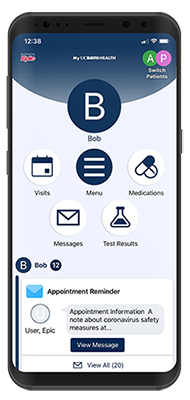
Telehealth Express Care video visits bring UC Davis Health doctors and health care providers to you quickly through the MyUCDavisHealth app and web portal.
Using your smartphone, tablet, or personal computer, you can connect with a UC Davis Health care team member for same-day and extended-hours video visits to discuss urgent care issues such as:
- flu-like symptoms
- cough
- diarrhea and stomach problems
- urinary tract issues
- headaches
- joint pain
- and many more health problems
During your video visit, Express Care providers also have the ability to order laboratory tests and medical imaging tests if you need them, including COVID-19 testing.
Preparing for Your Express Care Video Visit


To connect with a care team member:
- Make sure you have a strong and secure Internet or Wi-Fi connection.
- Request an Express Care video visit using the MyUCDavisHealth app or web portal by selecting Express Care.
- As you get ready for your video visit, you can use ePre Check-In for paying your co-pay, signing documents, and completing questionnaires.
Use the buttons below to begin your visit using the MyUCDavisHealth app or web portal (or to get help if you’re stuck).
Telehealth Express Care
See a care provider nowTrouble Logging In?
Visit our support pageStep By Step: How to Connect
To begin using the MyUCDavisHealth app, search and download from the App Store or Google Play Store. Once downloaded, open the app and accept the end-user license agreement. Then create a user account or sign in with your existing MyUCDavisHealth username and password.
To ensure a seamless connection during your Express Care video visit it is highly recommended to also download the ExtendedCare Cloud app on your device, if it’s not already installed. This app will run in the background during your video visit.
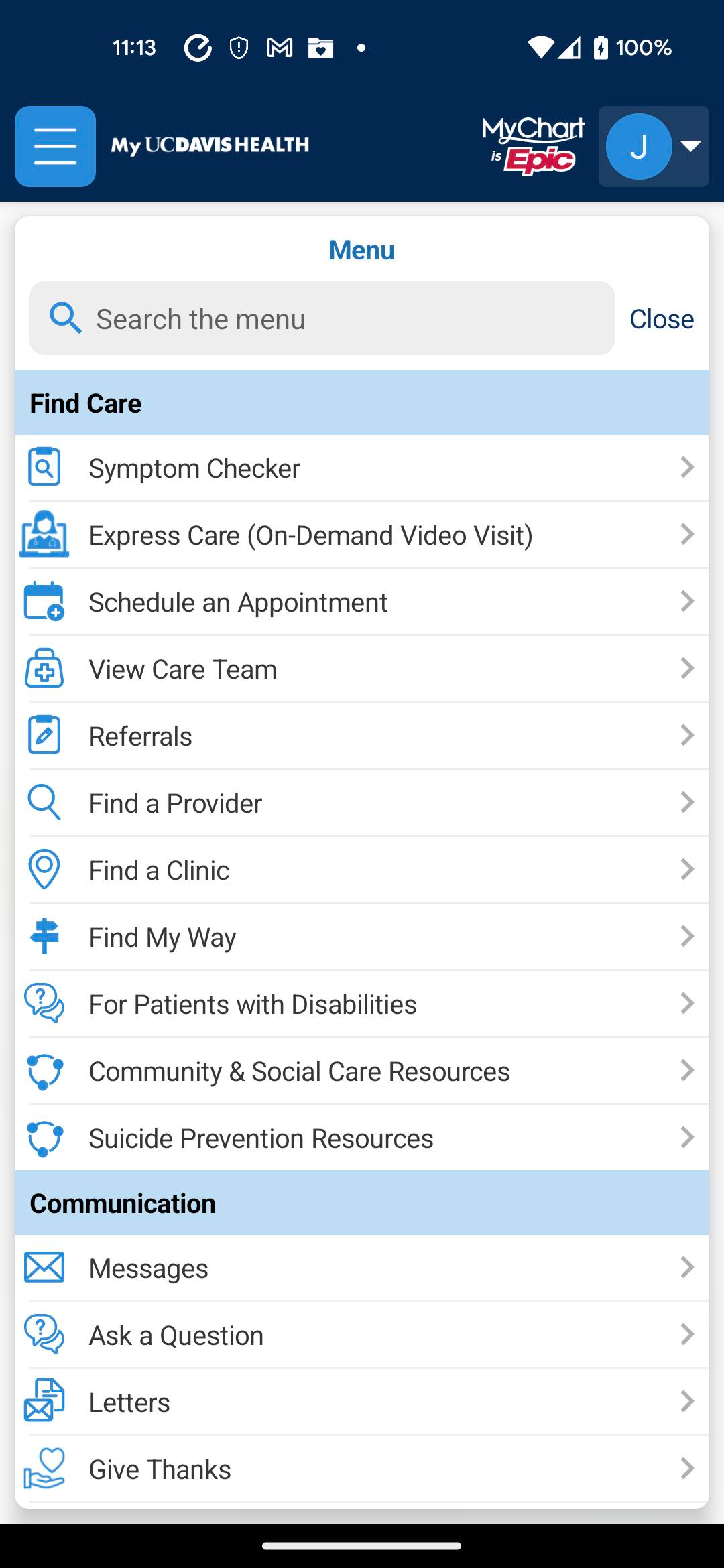
Step 1: Log in to the MyUCDavisHealth app and press menu. Once the menu drop down appears, press Express Care (On-Demand Video Visit) under Find Care.
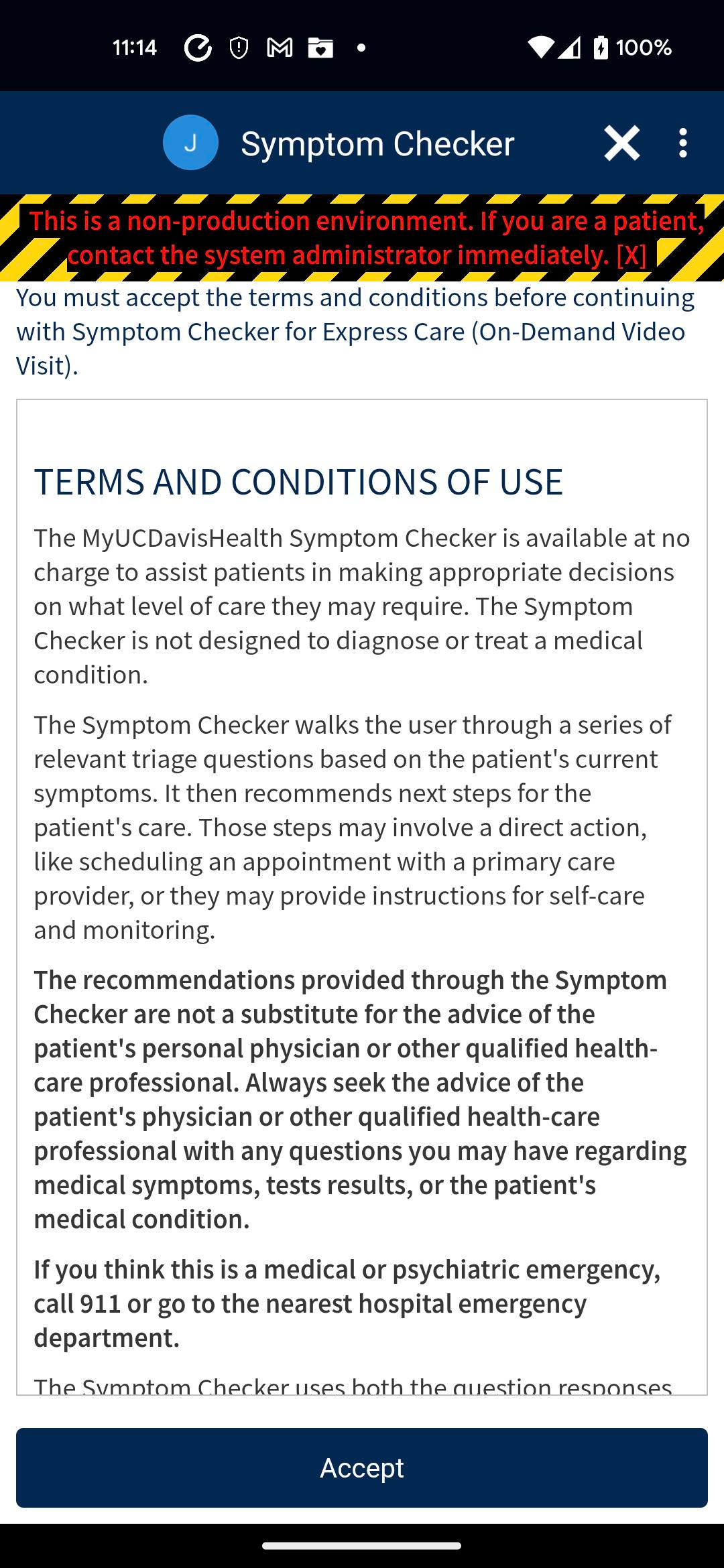
Step 2: The top of the screen will now say Symptom Checker. Accept the Terms and Conditions of Use by scrolling down and pressing the dark blue Accept button at the bottom of the screen. If the Accept button doesn’t appear right away, scroll down again until it does.
Step 3: You will be asked if this visit is for yourself or someone else. Answer by clicking the box/button that matches your situation, then click the dark blue Continue button.
Step 4: You will be asked if this visit is related to Workers Compensation. Answer by clicking the box/button that matches your situation, then click the dark blue Continue button.
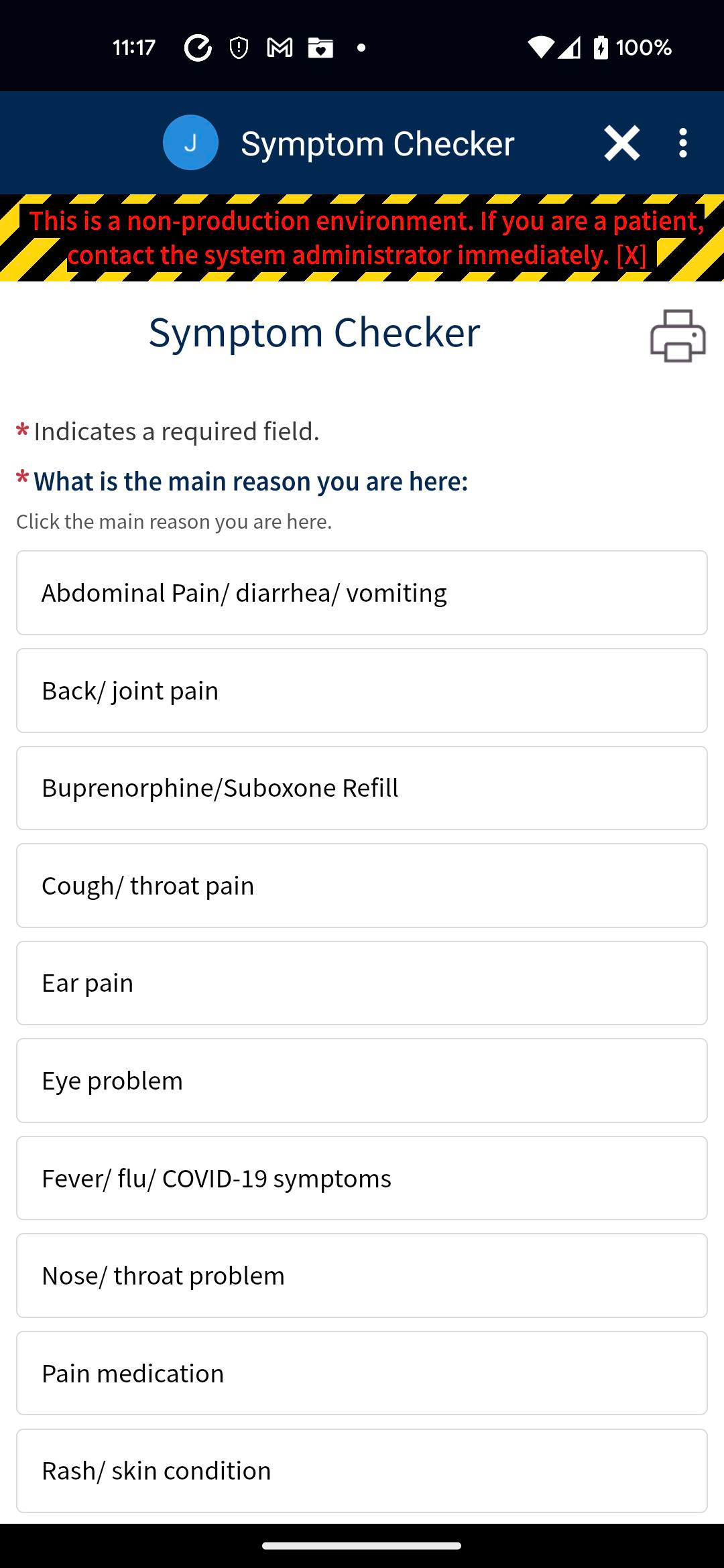
Step 5: You will be asked the reason for your Express Care visit. Answer by clicking the box/button that matches your situation, then click the dark blue Continue button.
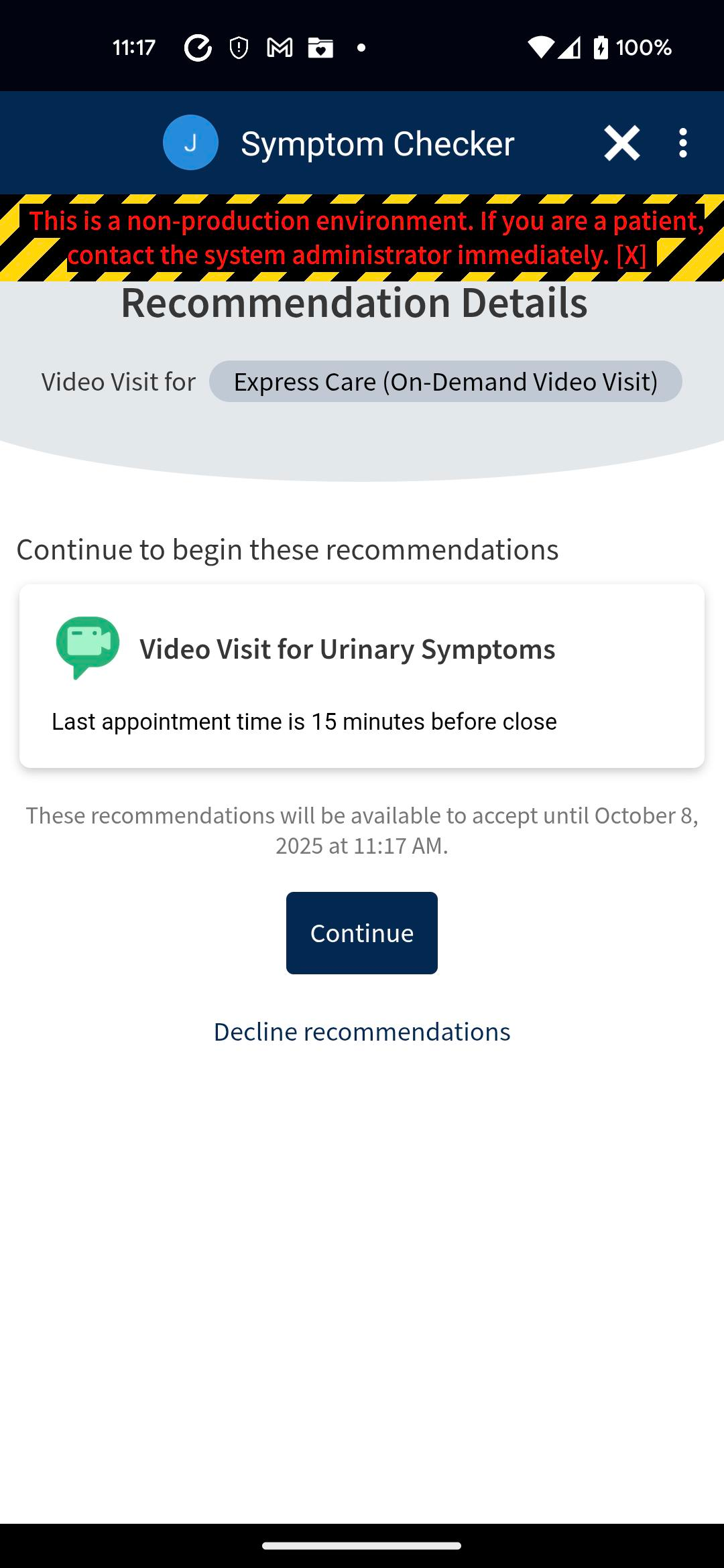
Step 6: The screen will say Recommendation Details. The app will show you what kind of Express Care visit that we recommend for you. To accept the recommendation, click the dark blue Continue button.
Step 7: Enter your current location. If the info already inserted is correct, press the dark blue Confirm button.
Step 8: The screen will say Scheduling Video Visit. You will be asked if you want to to test your hardware (the camera, microphone and/or speaker on your mobile phone or device). Click the dark blue Test hardware or Skip test buttons to continue.
Step 9: In the box with the asterisk, type your answer to let your care team member know what you would like to discuss. Then press Put me in line.
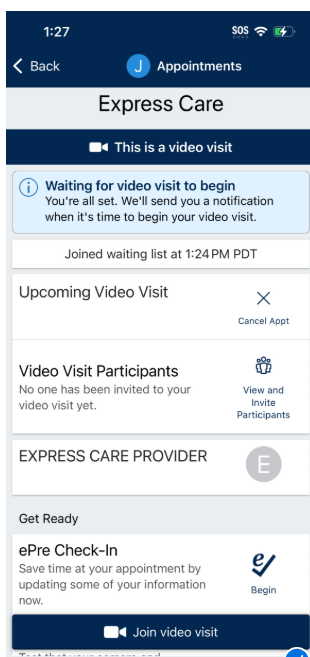
Step 10: The screen will say “This is a video visit” and show you have been added to the waiting list.
Visit the MyUCDavisHealth web portal at health.ucdavis.edu/login. Then create a user account or sign in with your existing MyUCDavisHealth username and password.
Note: Express Care can be accessed using Chrome or Firefox. It is not available using Internet Explorer.
Step 1: Log in to MyUCDavisHealth and click Menu in the upper left-hand corner. Once the menu drop down appears, click Express Care (On-Demand Video Visit) under Find Care.
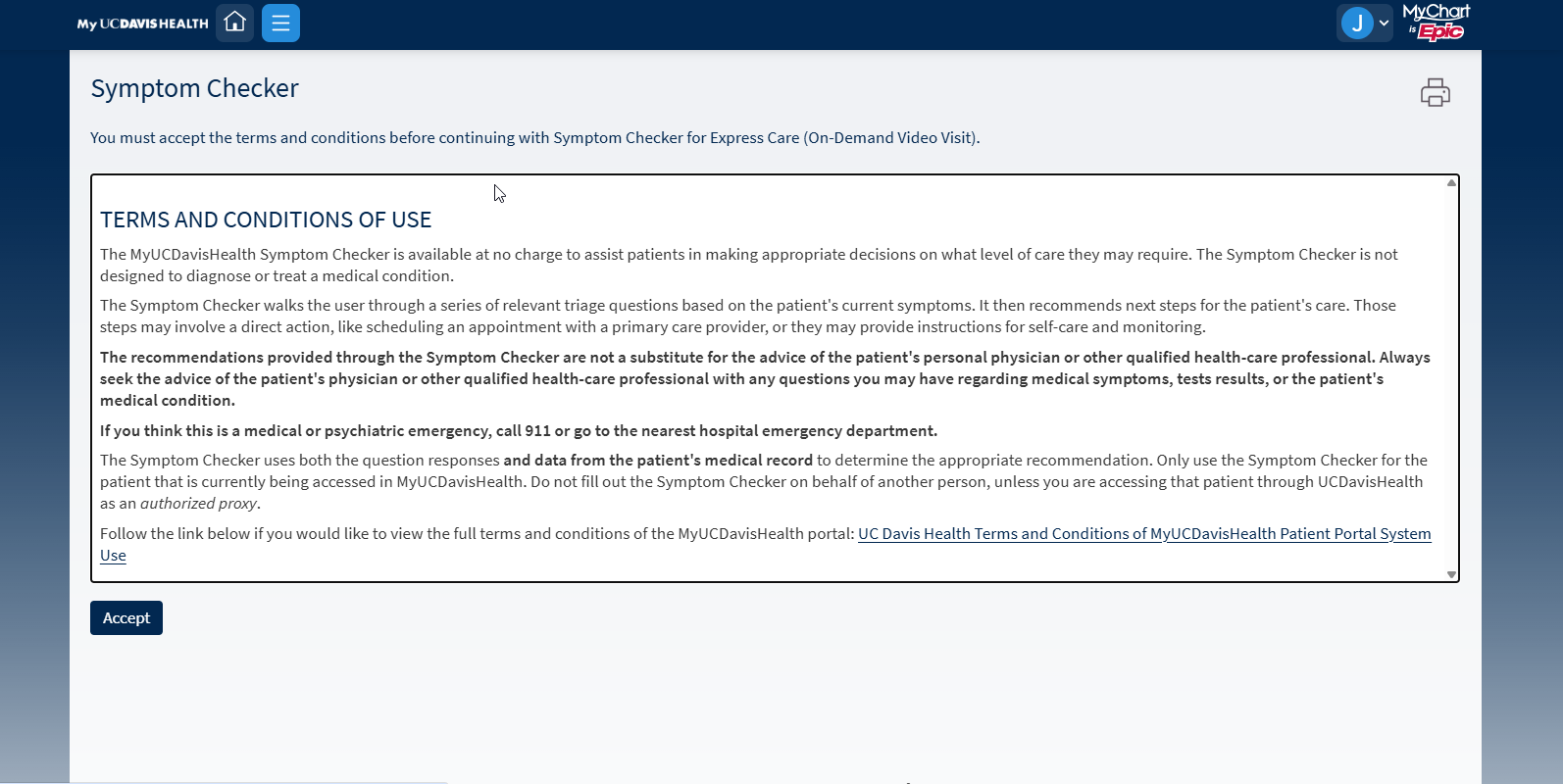
Step 2: The top of the screen will now say Symptom Checker. Accept the Terms and Conditions of Use by scrolling down and pressing the dark blue Accept button at the bottom of the screen. If the Accept button doesn’t appear right away, scroll down again until it does.
Step 3: You will be asked if this visit is for yourself or someone else. Answer by clicking the box/button that matches your situation, then click the dark blue Continue button.
Step 4: You will be asked if this visit is related to Workers Compensation. Answer by clicking the box/button that matches your situation, then click the dark blue Continue button.
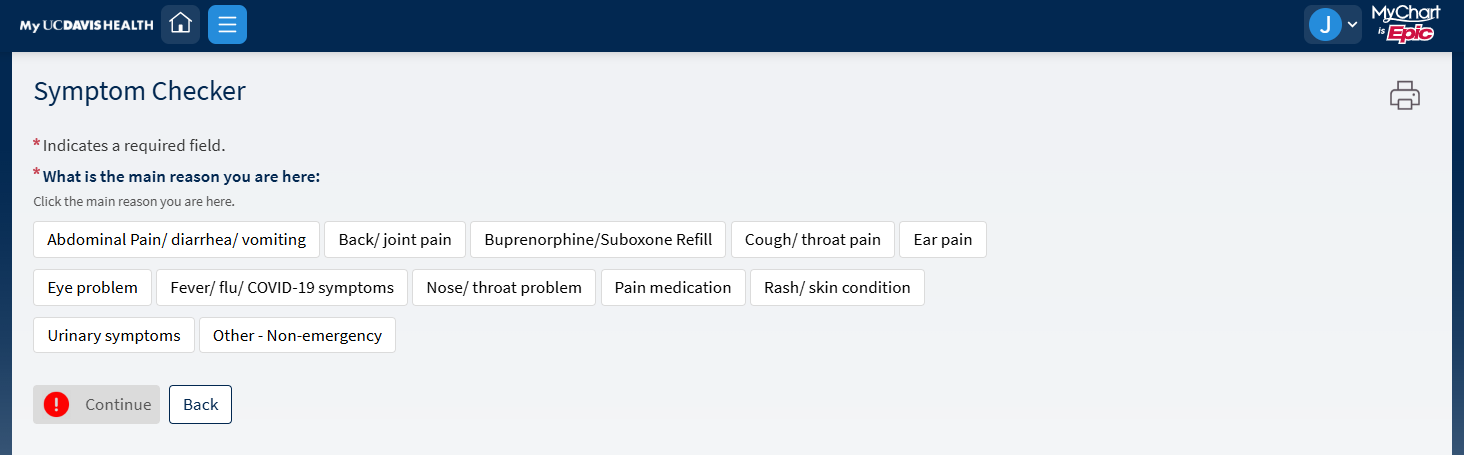
Step 5: You will be asked the reason for your Express Care visit. Answer by clicking the box/button that matches your situation, then click the dark blue Continue button.
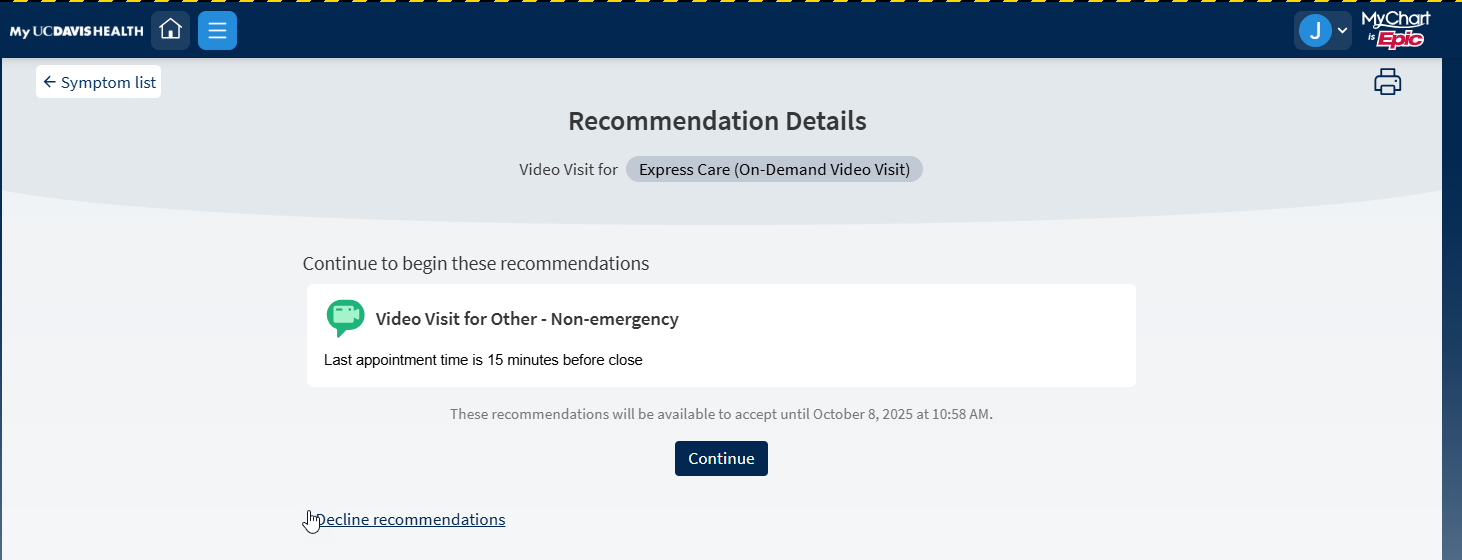
Step 6: The screen will say Recommendation Details. The app will show you what kind of Express Care visit that we recommend for you. To accept the recommendation, click the dark blue Continue button.
Step 7: Enter your current location. If the info already inserted is correct, press the dark blue Confirm button.
Step 8: The screen will say Scheduling Video Visit. You will be asked if you want to use your computer or a mobile app for your visit – click My computer. You will also be asked if you want to to test your hardware (the camera, microphone and/or speaker on your mobile phone or device). Click the dark blue Test hardware or Skip test buttons.
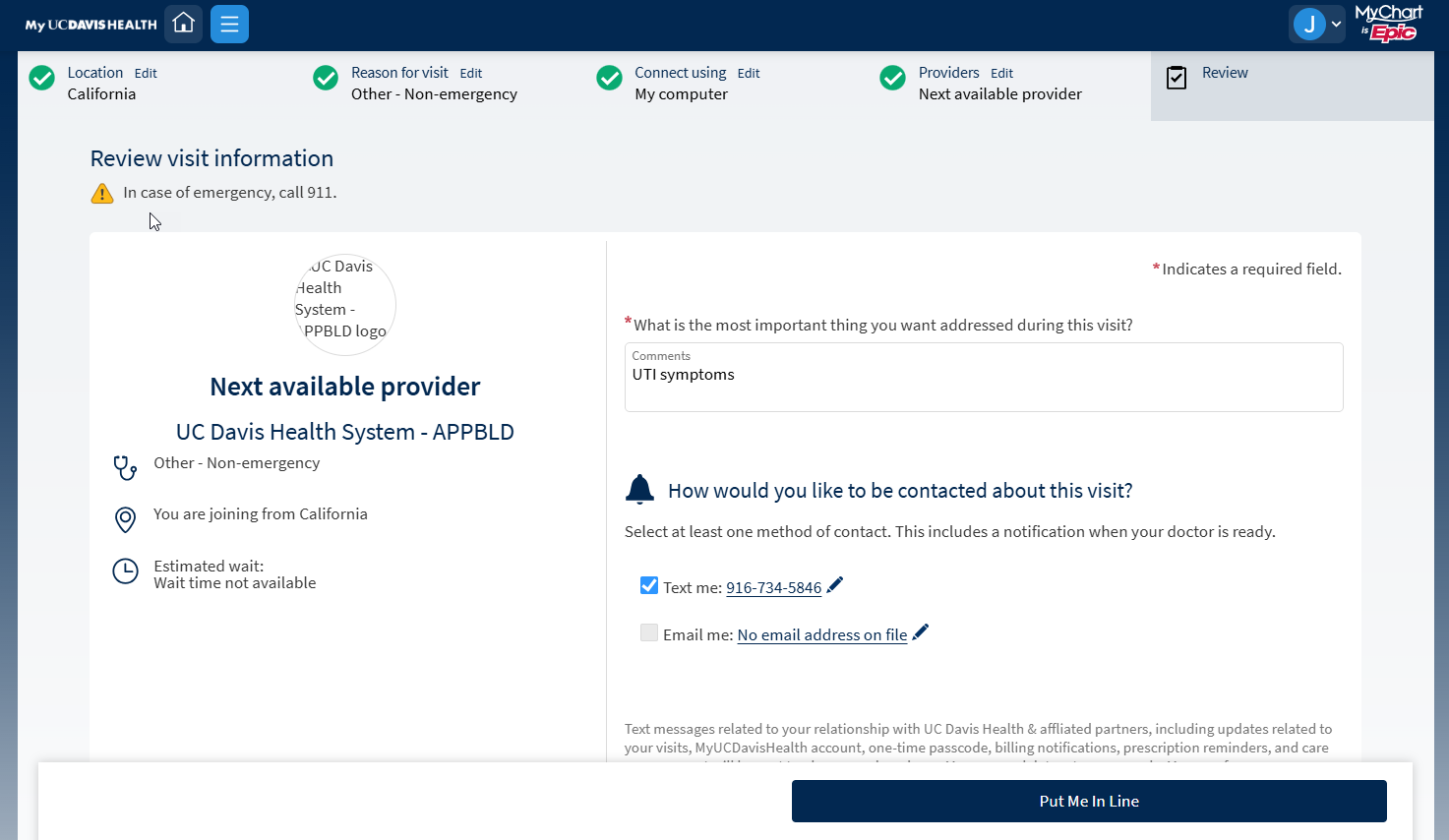
Step 9: In the box with the asterisk, type your answer to let your care team member know what you would like to discuss. Then press Put me in line.
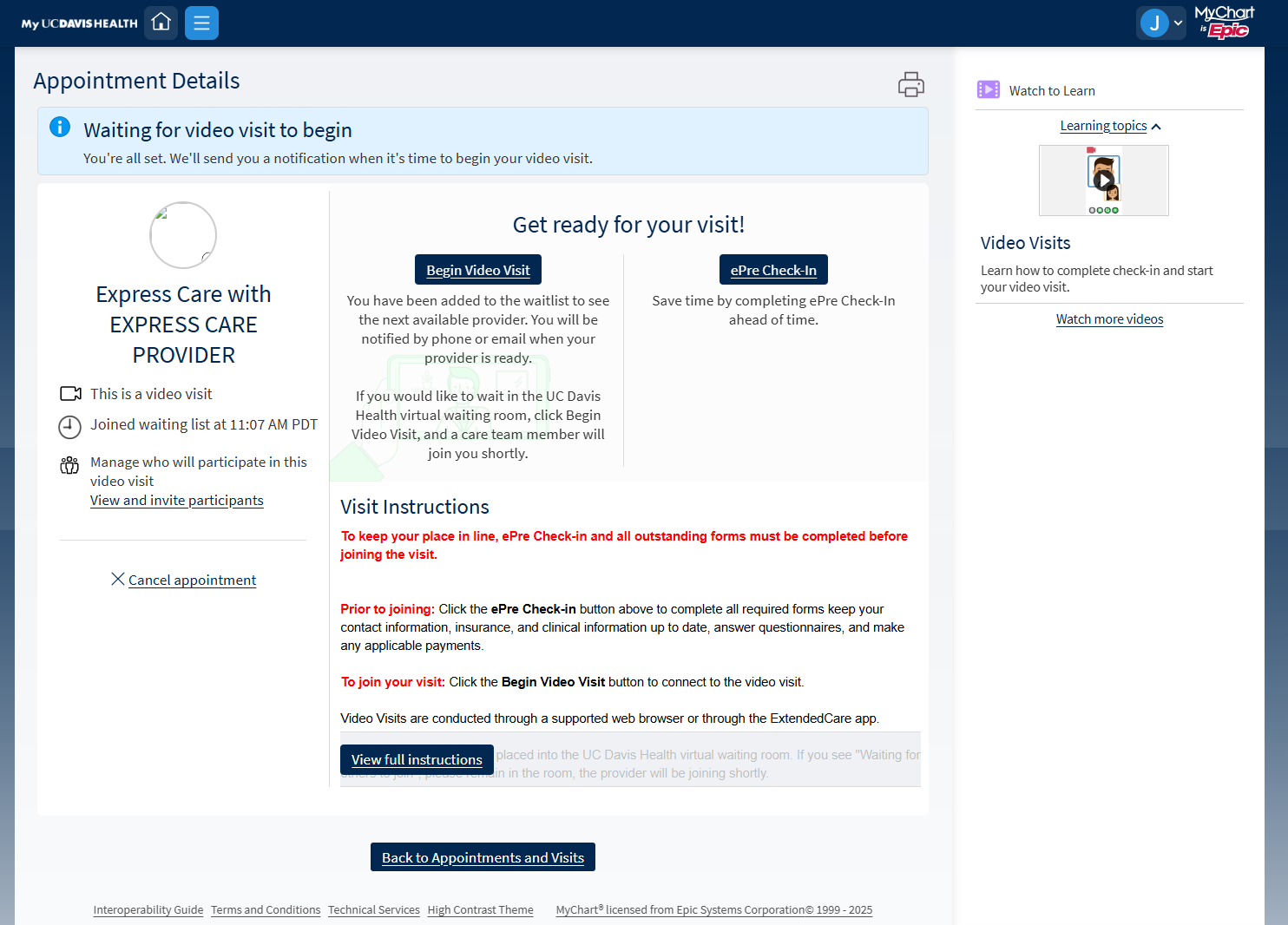
Step 10: The screen will say “Waiting for video visit to begin.” and show you have been added to the waiting list.
Telehealth Express Care
See a care provider nowTrouble Logging In?
Visit our support pageHelpful Tips and Tricks for Video Visits
- Make sure you have a strong and secure Internet or Wi-Fi connection. A 4G or LTE connection works, however you may experience interruptions due to a weak signal.
- Find a place where you can talk freely and avoid distractions during your video visit.
- Eliminate all background noises and mute TVs and music.
- Choose a well-lit area so your care team member can see you. Avoid shaded areas, and don’t sit in front of windows or behind shiny backgrounds as they can reflect light.
- Use your camera to show your care team member medications, rashes or wounds.
- Be prepared with a list of questions to ask your care team member.
Patient co-pays/fees may vary depending on insurance coverage. Please work with the care team member and your benefits provider to determine eligibility.
For questions or access support, call 916-703-HELP (916-703-4357).
Get Started With Express Care
Ready to start your Telehealth Express Care visit now? Or need help getting started? Choose the option below that fits best.
Our Express Care Team is Here for You
Telehealth Express Care is staffed and led by caring UC Davis Health providers.
Express Care Hours
Monday – Friday, 8 a.m. to 8 p.m.
Saturday – Sunday, 9 a.m. to 6 p.m.
Open during holidays
Help and Support
Online Help
Have a question about MyUCDavisHealth?
Log In Help
Having trouble logging in?
Contact Us
For additional questions or access support call: