Stay Connected To Your Health
MyUCDavisHealth
Access and Update Your COVID-19 Vaccine Records
MyUCDavisHealth account holders now have easy access to their COVID-19 vaccine records and test results. UC Davis Health patients and non-patients can view a QR code or download a PDF of their complete vaccine information.
For patients and non-patients who received at least one dose from UC Davis Health (and you have a MyUCDavisHealth account), you can manually add your remaining COVID-19 vaccine information.
Below are instructions on how to access your vaccine records or add vaccine information into MyUCDavisHealth if you received your vaccine(s) from another provider.
I have a MyUCDavisHealth account. How can I access my COVID-19 vaccine records or test results?
To get a digital QR code or download a PDF containing certifiable COVID-19 vaccine or test result data, follow these steps:
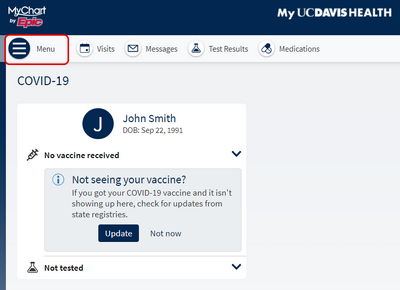
Step 1: Log into MyUCDavisHealth. Once you’re logged in, click “Menu” and scroll down to select “COVID-19” (located under the “My Record” section).
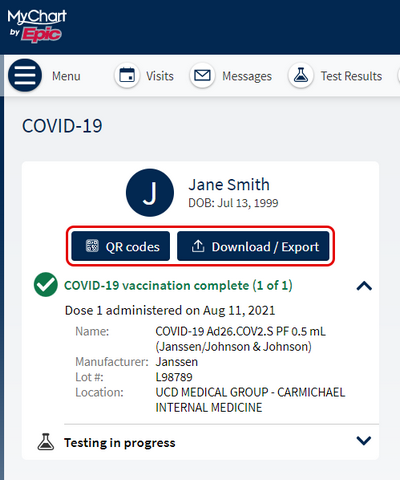
Step 2: On this page, it will show vaccination and recent COVID-19 testing status. You will also see two buttons for “QR codes” and “Download/Export.”
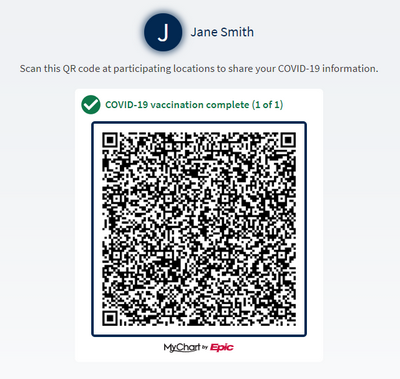
a. If you click “QR codes,” you will see one QR code for your COVID-19 vaccine records and a second code to show a recent COVID-19 test (when applicable).
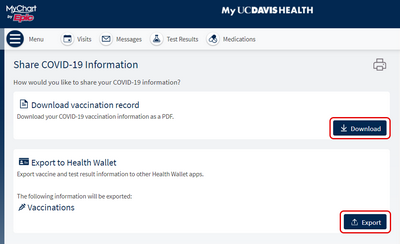
b. The “Download/Export” button will give you two options. The first is to download your vaccination record as a PDF. The second button is to export your vaccine records to your smartphone Health Wallet. However, this function is not available at this time.

Note: If you are a UC Davis Health patient and don’t have a MyUCDavisHealth account, our clinical staff can print out a QR code for you, or you can create an account here.
Be sure you have the most recent version of the app: version 9.8 or higher.
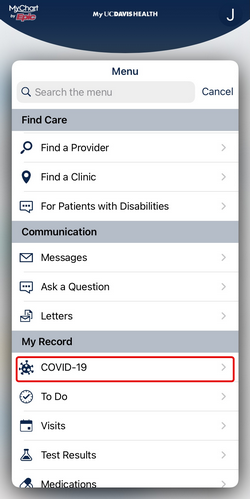
Step 1: Log into the MyUCDavisHealth app. Once you’re logged in, click “Menu” and scroll down to select “COVID-19” (located under the “My Record” section).
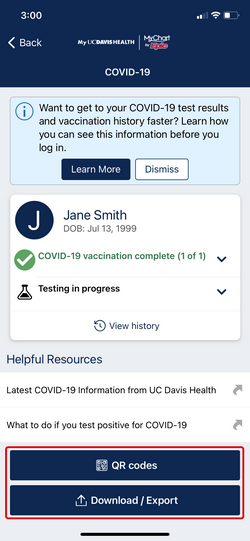
Step 2: On this page, it will show vaccination and recent COVID-19 testing status. You will also see two buttons for “QR codes” and “Download/Export.”
NOTE: If you are not seeing these buttons, please make sure your version of the app is up-to-date.
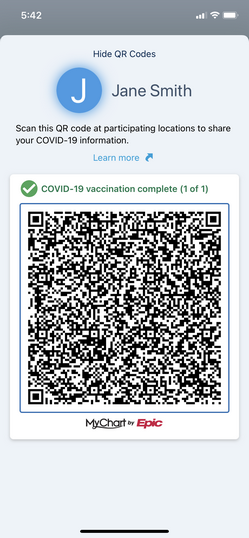
a. If you click “QR codes,” you will see one QR code for your COVID-19 vaccine records and a second code to show a recent COVID-19 test (when applicable).
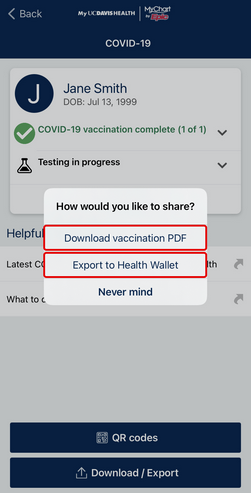
b. The “Download/Export” button will give you two options. The first is to download your vaccination record as a PDF. The second button is to export your vaccine records to your smartphone Health Wallet. However, this function is not available at this time.
I have a MyUCDavisHealth account, but I got at least one COVID-19 vaccine from another provider. How can I update my COVID-19 vaccination records?
If you’ve logged into your MyUCDavisHealth COVID-19 section, but see a message that says, “Not seeing your vaccine?”, please follow the steps below:
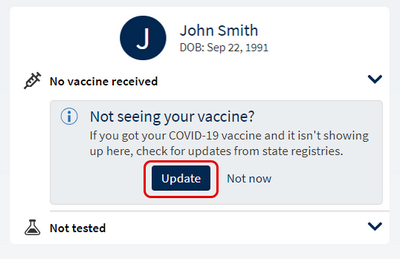
Step 1: Click the blue box that says “Update.” This will attempt to pull your vaccination record from the California Immunization Registry (CAIR).
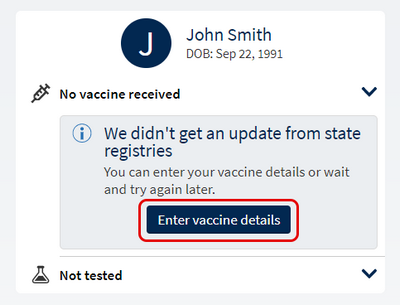
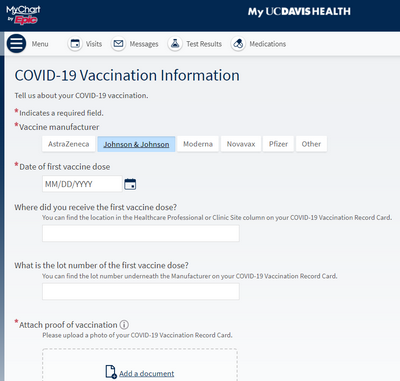
Step 2: If you still see a message that says, “We didn’t get an update from state registries,” click “Enter vaccine details.” This will take you to a questionnaire where you will be asked to fill in your COVID-19 vaccine information, such as who manufactured your vaccine and the date(s) of your vaccine(s). You will also be asked to upload a photo of your COVID-19 Vaccination Record Card.
- Once you’ve completed the questionnaire accurately, UC Davis Health clinical staff will review and update your records accordingly.
- If our clinical staff discards your vaccination information, we recommend that you follow up with the location that administered your vaccine(s).
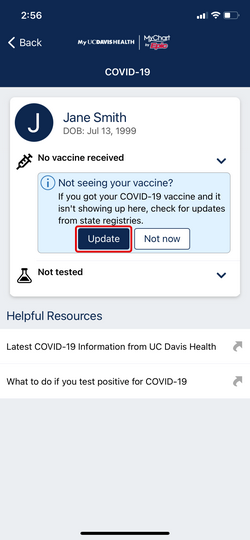
Step 1: Click the blue box that says “Update.” This will attempt to pull your vaccination record from the California Immunization Registry (CAIR).
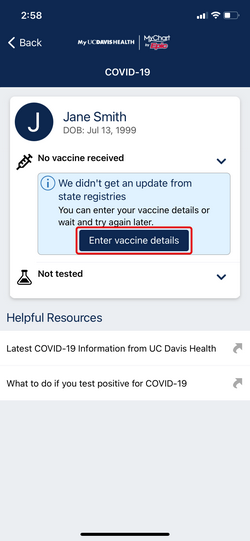
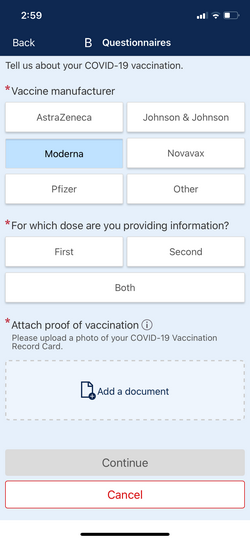
Step 2: If you still see a message that says, “We didn’t get an update from state registries,” click “Enter vaccine details.” This will take you to a questionnaire where you will be asked to fill in your COVID-19 vaccine information, such as who manufactured your vaccine and the date(s) of your vaccine(s). You will also be asked to upload a photo of your COVID-19 Vaccination Record Card.
- Once you’ve completed the questionnaire accurately, UC Davis Health clinical staff will review and update your records accordingly.
- If our clinical staff discards your vaccination information, we recommend that you follow up with the location that administered your vaccine(s).
Help and Support
Online Help
Have a question about MyUCDavisHealth?
Log In Help
Having trouble logging in?
Contact Us
For additional questions or access support call: